ACCESS CONTROL
Purpose: The Access Control module provides a centralized interface for managing granular permissions across the system. It enables administrators to define precisely who can view, edit, submit, or delete specific forms and workflows, ensuring data security and enforcing role-based or organization-based access policies.
This screen manages granular permissions for who can access specific forms and workflows in the system.
Accessing Access Control
Navigation: Left Sidebar → WORKFLOW & FORMS → Access Controls
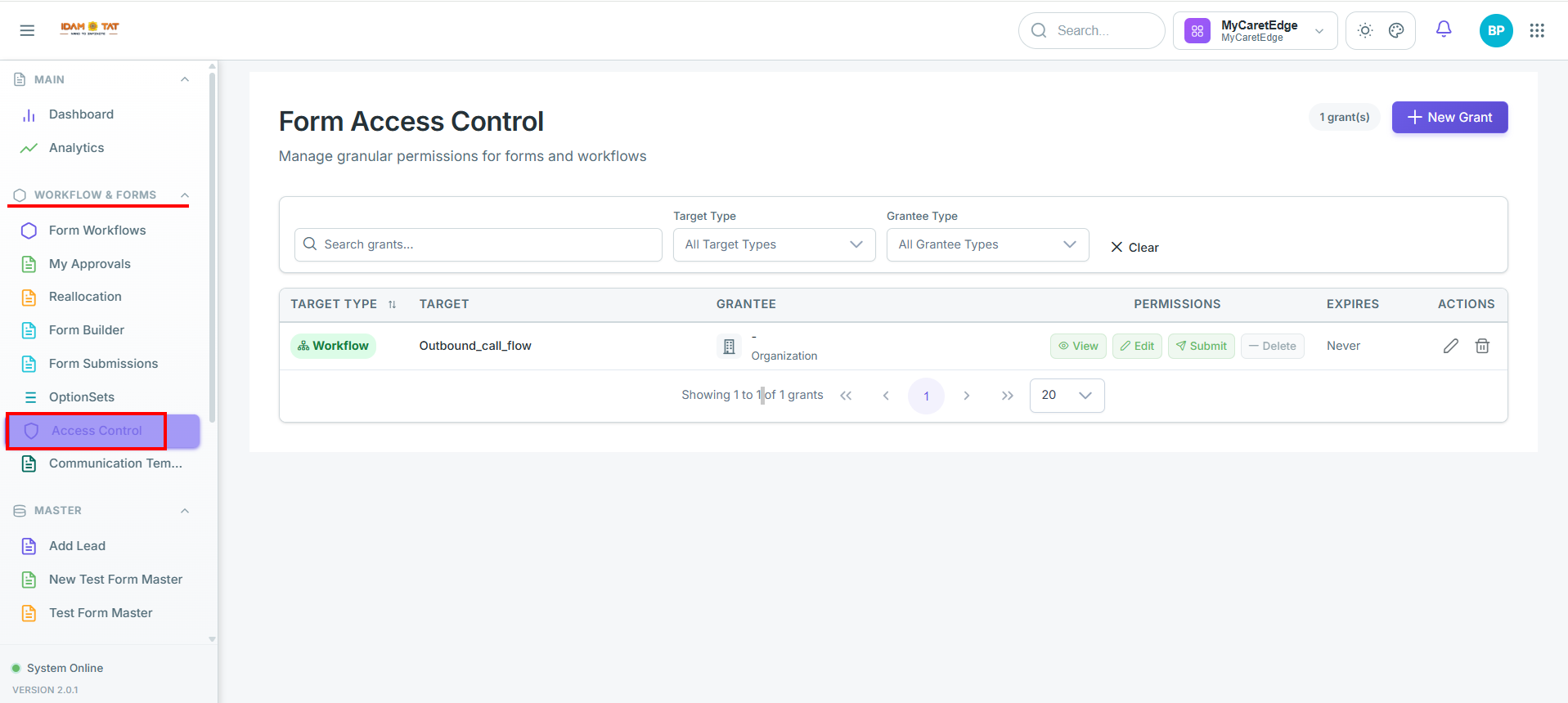
Access control landing page
Page Header
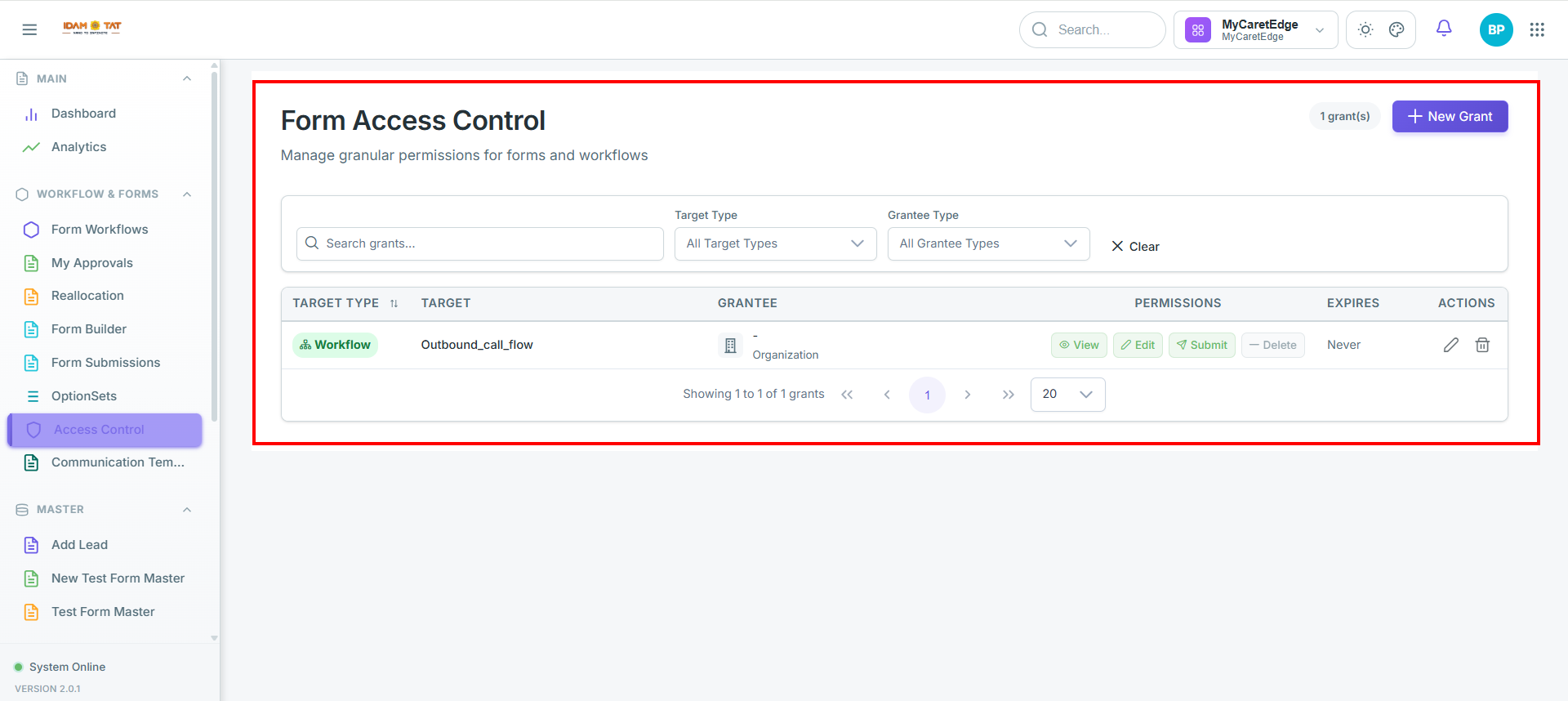
- Title: "Form Access Control" with subtitle "Manage granular permissions for forms and workflows"
- Shows 1 grant(s) currently configured
- + New Grant button (purple) to create a new permission grant
Filters / Search Bar
Three ways to narrow down the grants list:
- Search grants — free-text search
- Target Type dropdown — filter by what the grant applies to (e.g. Workflow, Form)
- Grantee Type dropdown — filter by who the grant is given to (e.g. User, Role, Organization)
- Clear — resets all filters
Grants Table
The table has these columns:
| Column | Description |
|---|---|
| Target Type | What kind of object the grant is for — here it's a Workflow (shown with green badge) |
| Target | The specific object — here it's Outbound_call_flow |
| Grantee | Who receives the permission — here it's an Organization |
| Permissions | What actions are allowed — this grant has View, Edit, Submit enabled and Delete disabled (greyed out) |
| Expires | When the grant expires — here it's set to Never |
| Actions | Edit (✏) or Delete (🗑) the grant |
Create Access Grant
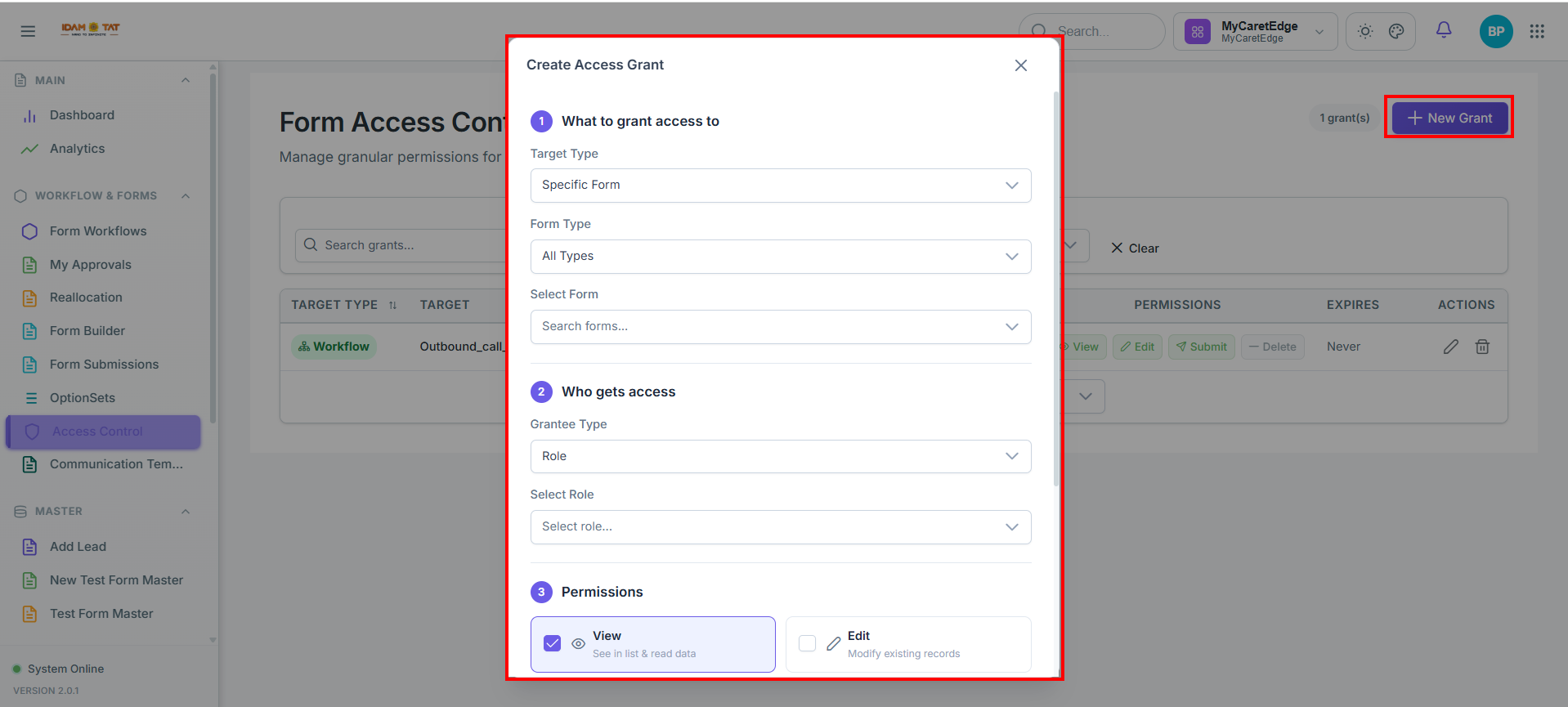
This is a 3-step modal for creating a new permission grant — defining what to grant access to, who gets it, and what they can do.
Click on the New Grant button a tab will open with the following details
1 — What to grant access to
| Field | Description |
|---|---|
| Target Type | The type of object to grant access to — set to Specific Form |
| Form Type | Filter forms by type — set to All Types |
| Select Form | Search and pick the specific form to grant access to |
2 — Who gets access
| Field | Description |
|---|---|
| Grantee Type | Who will receive the grant — set to Role (could also be a User or Organization) |
| Select Role | Pick the specific role that will receive the grant |
3 — Permissions
Four permission options, each as a toggleable checkbox:
| Permission | Description | Default |
|---|---|---|
| View | See in list & read data | ✅ On |
| Edit | Modify existing records | ☐ Off |
| Submit | Create new submissions | ☐ Off |
| Delete | Remove records | ☐ Off |
Additional Fields
- Notes (Optional) — A free-text field to record the reason for this grant (placeholder: "Reason for this grant...")
- Expires (Optional) — Set an expiry date for the grant; defaults to "No expiry — grant is permanent"
Frequently Asked Questions (FAQ)
Q 1. What is the purpose of the Access Control module?
A: The Access Control module provides a centralized interface for managing granular permissions across the system. It enables administrators to define precisely who can view, edit, submit, or delete specific forms and workflows, ensuring data security and enforcing role-based or organization-based access policies.
Q 2. How do I navigate to the Access Control page?
A: From the left sidebar, navigate to WORKFLOW & FORMS and select Access Controls.
Q 3. What types of targets can be controlled using Access Control?
A: You can set access controls on targets such as Workflows and specific Forms (which can be filtered by Form Type and selected individually).
Q 4. Who can be granted access permissions (Grantees)?
A: Permissions can be granted to:
- User: An individual user account.
- Role: A specific functional role within the system.
- Organization: A specific business unit or organizational level.
Q 5. What actions/permissions can be configured on a grant?
A: There are four toggleable permissions: - View: Allows the grantee to see the target in lists and read its data (enabled by default). - Edit: Allows the grantee to modify existing records. - Submit: Allows the grantee to create new submissions. - Delete: Allows the grantee to remove records.
Q 6. Can I set temporary permission grants?
A: Yes. The Expires field allows you to select an expiry date for the grant. By default, if no date is specified, the grant is permanent ("No expiry — grant is permanent").
Q 7. How do I search or filter existing access grants?
A: On the Access Control landing page, you can narrow down the list of grants using three filters: - Search grants (free-text search) - Target Type dropdown (e.g., Workflow, Form) - Grantee Type dropdown (e.g., User, Role, Organization) You can reset all filters by clicking the Clear button.
Q 8. Can I add notes or comments explaining why a grant was created?
A: Yes, there is an optional Notes free-text field during the grant creation process where you can document the reason or justification for that specific grant.