DASHBOARD
Purpose: The Dashboard serves as the command center for TenantAdmins — providing a real-time, at-a-glance overview of the entire tenant's user activity, security health, role distribution, and audit trail. It helps administrators quickly identify risks, monitor adoption, and take action without navigating away from a single screen.
Accessing Dashboard
Navigation: Main → Dashboard
Layout Structure
The page is divided into three main zones:
- Top Bar — A full-width header containing the logo, global search, switcher dropdowns, notification center, visual controls, and user profile avatar.
- Left Sidebar — A fixed navigation panel organized by system modules and sections.
- Main Content Area — The central workspace presenting metric cards, interactive charts, audit logs, and action items.
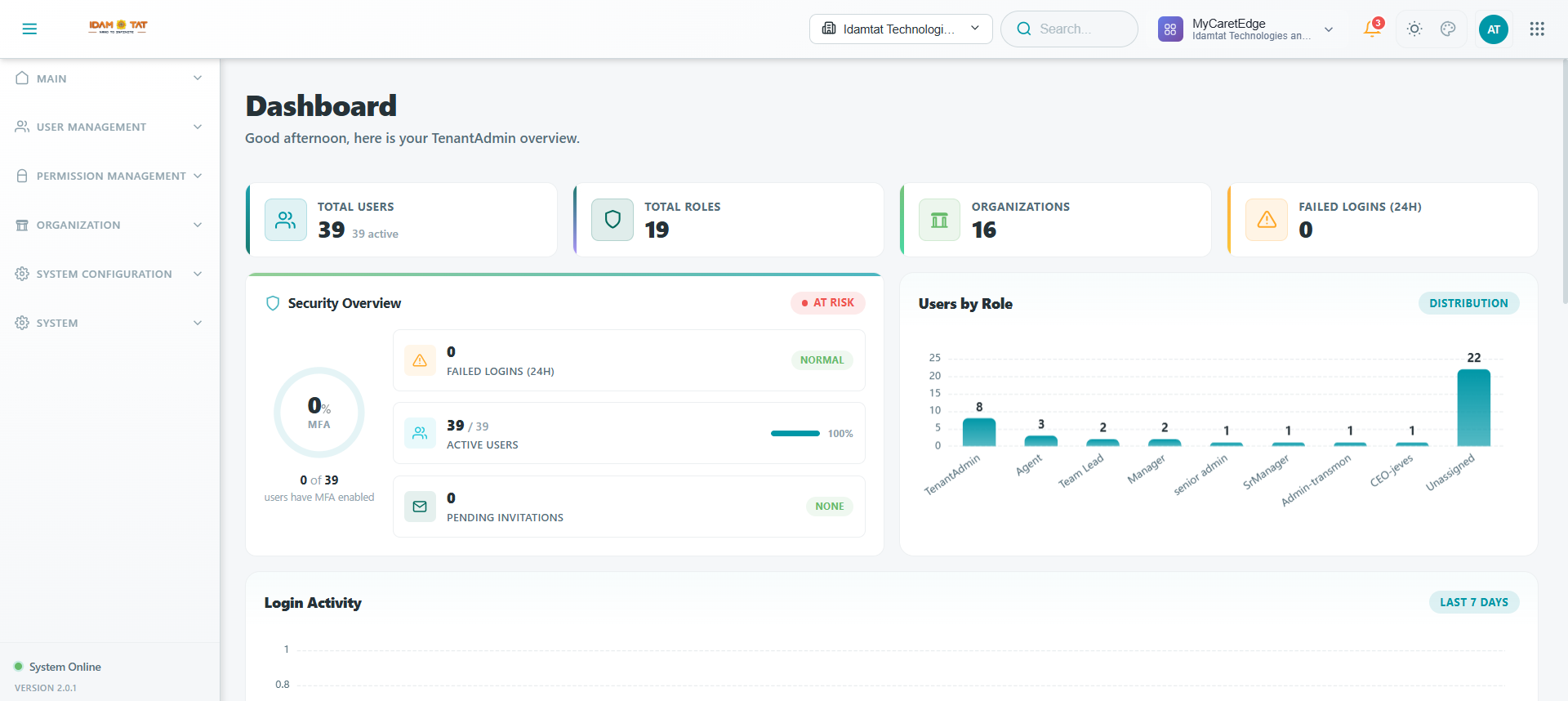
1. Top Bar
The Top Bar provides high-level context switching, global search, and system settings:
- Toggle Switcher | A toggle switch to switch between light and dark mode.
- Logo | Displays the
IDAMTATlogo on the far left. - Org Switcher | A dropdown displaying the active tenant (
Idamtat Technologi...). Clicking this dropdown allows the administrator to switch between different tenants or departments. - Search Bar | A global search field with the placeholder
Search...to quickly locate resources, users, or settings. - Hirearchy Switcher | A grid icon selector (
MyCaretEdge / Idamtat Technologies a...) that enables seamless navigation to other applications in the Advaita ecosystem. - Notifications | A bell icon (
🔔) with a red badge indicating the number of unread system alerts and security events (showing2in the dashboard view). - Mode Switcher | Visual toggle buttons (sun and moon icons) to switch between Light Mode and Dark Mode.
- Theme Picker | A color theme picker (palette icon) to change the UI color scheme instantly.
- Avatar | Displays the user's initials (e.g.,
AI). Clicking the avatar opens a dropdown menu to access user profile details, settings, and sign-out actions. - App Switcher | A grid icon selector that enables seamless navigation to other applications in the Advaita ecosystem.
2. Left Sidebar
The Left Sidebar is the primary vertical navigation panel for TenantAdmins, grouped by administrative functional areas:
Main
The central hub for administrative oversight:
- Dashboard (active) | Displays the real-time operational status, system health metrics, security alerts, and quick actions.
User Management
Tools to onboard, manage, and configure system users:
- Users | View, edit, create, and manage individual user profile details and their operational statuses.
- Roles | Define standard and custom user roles (e.g., TenantAdmin, Agent, Manager) and their core permission scopes.
- Invitations | Invite new users to the platform via email and track the status of pending invites. (Features a green
NEWbadge).
Permission Management
Granular control over security privileges and application access:
- Permission List | A master list of all distinct functional permissions available across the system.
- Role Permissions | Map specific permissions to defined user roles to determine collective access rights.
- User Permissions | Assign specific, direct permissions to individual users, bypassing or supplementing role-based permissions.
- Hierarchy Permissions | Configure data-visibility and edit rights based on organizational hierarchy levels.
- App Access | Grant or restrict access to specific applications within the Advaita product ecosystem.
- User Superior Mapping | Map reporting lines between employees and supervisors/managers to establish approval flows.
Organization
Structure and brand identity management:
- Tenants | Configure settings, statuses, and core parameters of the main tenant account.
- Organizations | Set up and manage sub-organizations, departments, or corporate entities.
- Hierarchy | Configure hierarchical levels, nodes, and organizational reporting lines.
- Tenant Logo | Upload and manage system branding logos for the header, sidebar, and login screens.
System Configuration
Global platform settings and external integrations:
- System Definitions | Configure global system variables, constants, and settings parameters.
- User System Mapping | Define the routing and association between users and external systems or integrated third-party applications.
System
System-wide activity loggers:
- Audit Logs | Access the security audit trail logs to trace user activities, blocked actions, and compliance events.
3. Main Content Area
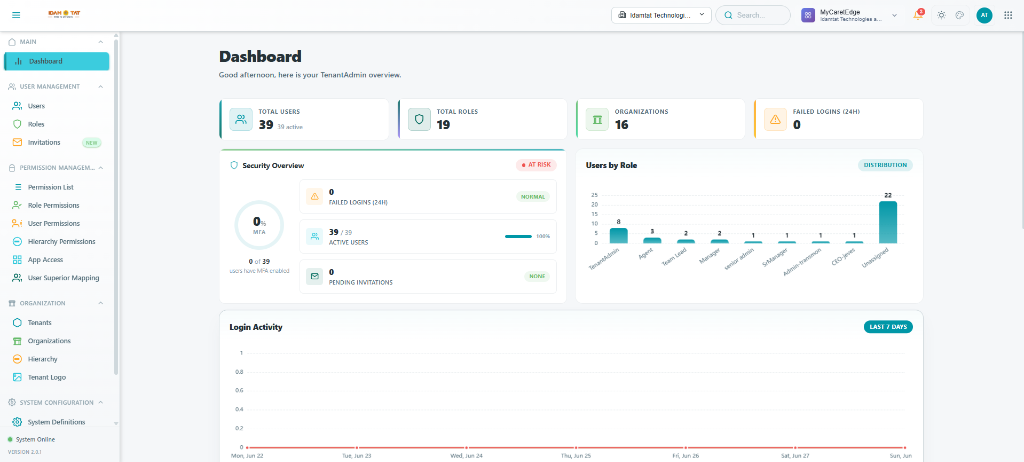
Summary Stats (Top Cards)
Four key performance indicator (KPI) cards are positioned at the top of the dashboard:
| Metric | Value | Icon & Design | Meaning |
|---|---|---|---|
| Total Users | 39 (39 active) |
Teal block with user-group icon | The total number of registered users under this tenant, with all 39 currently active. |
| Total Roles | 19 |
Purple block with shield icon | The total number of custom and default roles defined. |
| Organizations | 16 |
Green block with building icon | The number of business units or organizations configured. |
| Failed Logins (24H) | 0 |
Orange block with exclamation triangle | Shows if there have been failed login attempts. Currently 0, indicating zero login failures in the past 24 hours. |
Security Overview
A card flagged AT RISK in red, highlighting crucial security configurations requiring immediate attention:
- MFA Adoption Radial Chart: Displays
0% MFA(showing0 of 39 usershave Multi-Factor Authentication enabled). - Security Checkpoints Table:
| Metric | Value | Status |
|---|---|---|
| Failed Logins (24H) | 0 |
NORMAL (Green border badge) |
| Active Users | 39 / 39 |
100% (Teal progress bar filled) |
| Pending Invitations | 0 |
NONE (Grey border badge) |
⚠️ Critical Security Warning: The AT RISK status is triggered because MFA is completely disabled across all accounts, presenting a significant security risk.
Users by Role (Bar Chart)
An interactive bar chart with a DISTRIBUTION badge that visualizes the allocation of users across various system roles:
- Dynamic Role Mapping: Displays the count of active users assigned to each custom or system role defined in the tenant.
- Unassigned Category: Highlights the number of users who have been onboarded but do not have any assigned roles.
⚠️ Access Control Warning: A high number of Unassigned users (as seen in the reference view with 22 unassigned users) indicates that registered users lack defined permissions. TenantAdmins should review and assign roles to these users to ensure proper access controls.
Login Activity (Line Chart)
A time-series line chart tracking login frequencies for the LAST 7 DAYS (covering Monday, Jun 22 to Sunday, Jun 28). Currently displays a flat red line at 0, indicating no login activity was logged during this week.
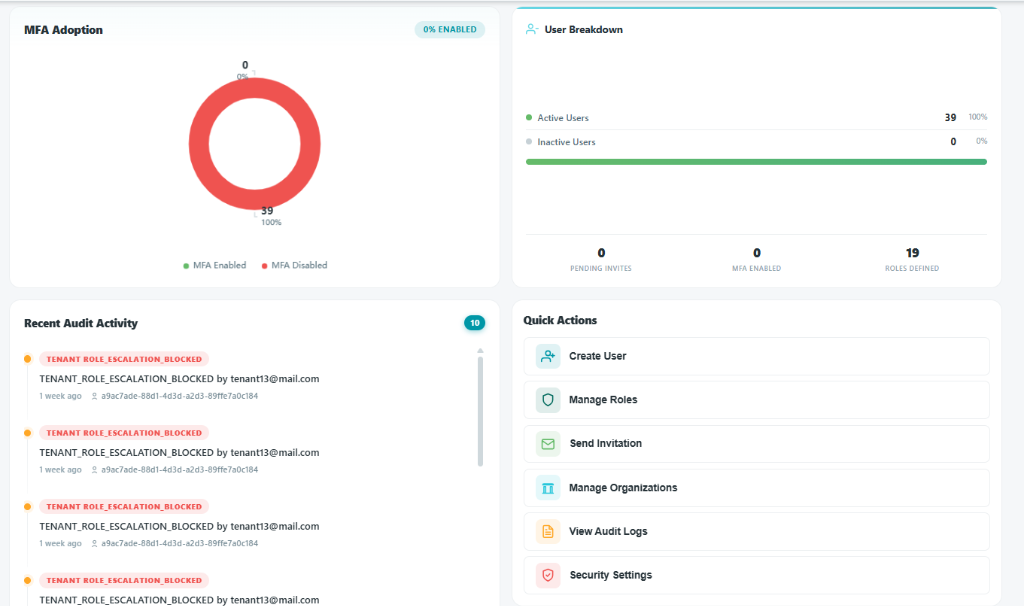
MFA Adoption (Donut Chart)
A visualization chart flagged with a 0% ENABLED badge:
- MFA Disabled:
39users (100%- represented by a full red donut ring) - MFA Enabled:
0users (0%- represented by green)
User Breakdown
A card containing granular status details:
- Active Users:
39(100%with a full green bar) - Inactive Users:
0(0%with an empty grey bar) - Metadata Stats:
0PENDING INVITES0MFA ENABLED19ROLES DEFINED
Recent Audit Activity
A timeline panel displaying the latest security events, with a teal count badge of 10:
- Audit Log List: Shows repeated blocked role escalation attempts:
- Event:
TENANT_ROLE_ESCALATION_BLOCKED - Actor:
tenant13@mail.com - Timestamp:
1 week ago - User ID:
a9ac7ade-88d1-4d3d-a2d3-89ffe7a0c184
🔍 Investigation Action: The repeated attempts by
tenant13@mail.comto escalate privileges have been successfully blocked by the system, but represent a potential insider threat or compromised account that requires immediate audit review.
Quick Actions
A navigation dashboard grid offering one-click access to administrative functions:
- Create User (with user-plus icon) — Opens the tab to add new user profiles.
- Manage Roles (with shield icon) — Direct shortcut to the role creation and permission manager.
- Send Invitation (with envelope icon) — Opens the email invite panel.
- Manage Organizations (with building icon) — Accesses the business units list page.
- View Audit Logs (with list icon) — Redirects to the complete system audit trail.
- Security Settings (with shield-check icon) — Opens the tenant security policies configuration page.
Frequently Asked Questions (FAQ)
Q 1. Who is the primary target audience for this Dashboard, and what is its purpose?
A: The Dashboard is designed as the central command center for TenantAdmins. It provides a real-time, at-a-glance overview of the entire tenant's user activity, security health, role distribution, and system audit trail, enabling administrators to monitor adoption and quickly identify risks.
Q 2. Why would the dashboard display an "AT RISK" security status?
A: The "AT RISK" warning is triggered if Multi-Factor Authentication (MFA) adoption is low or completely disabled across the tenant's user accounts (e.g., 0% MFA enabled). This serves as a critical warning for administrators to enforce MFA policies.
Q 3. What does a high count of "Unassigned" users in the role distribution indicate?
A: A high number of unassigned users indicates that registered users lack defined permissions and roles within the platform. TenantAdmins should review these accounts and assign appropriate roles to ensure proper security and access controls.
Q 4. How can I switch between different tenants or department contexts?
A: In the Top Bar, click the Org Switcher dropdown, which shows the active tenant. Selecting a different tenant from the dropdown will instantly switch the dashboard context.
Q 5. What kind of events are flagged in the Recent Audit Activity log?
A: The Recent Audit Activity timeline flags critical security events, such as blocked role escalation attempts (TENANT_ROLE_ESCALATION_BLOCKED), including the actor, timestamp, and user ID. This helps administrators investigate potential internal threats or compromised accounts.
Q 6. What shortcuts are available in the Quick Actions section?
A: The Quick Actions section offers a navigation grid providing one-click access to: 1. Create User (opens the tab to add new user profiles) 2. Manage Roles (direct shortcut to role and permission configuration) 3. Send Invitation (opens the email invite panel) 4. Manage Organizations (accesses the business units list) 5. View Audit Logs (redirects to the system audit trail) 6. Security Settings (opens tenant security policies configuration)